Create an Order from the Orders Page
You can create an order from the market data by clicking the Bid or Ask price, or you can use the Orders tab and select an underlying. You may create orders for contracts that do not appear on the Market page. WebTrader supports Limit, Market, Stop, Stop Limit, Trailing Stop, Discretionary and Bracket orders.
Create an order from the Orders page
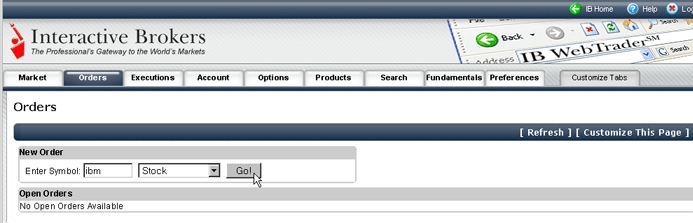
Click the Orders tab, enter an underlying symbol, select an instrument and click go!
Select a contract by clicking in the Contract Selection list.
In the Create Order section of the Order Management screen, modify any necessary parameters including:
Action - Buy or Sell.
Quantity - number of units in the order.
Limit Price - for Limit and Stop Limit orders.
Election Price - for Stop and Stop Limit orders, the price that must be penetrated to initiate the order.
Order Type - Limit, Market, Stop or Stop Limit orders.
TIF - Day, GTC. A Day order continues to work until it executes or the market closes. GTC (good 'til cancelled) order continues to work until it executes or is cancelled.
Exchange - select SMART to get the best execution, or choose to direct-route to a single exchange by choosing from the list.
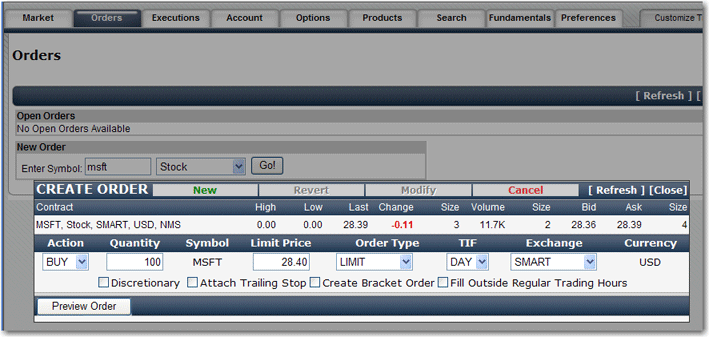
NOTE: In conjunction with a Limit order, you can add an order attribute by checking the box under the order, for Discretionary, Attach Trailing Stop or Create Bracket order.
Check Fill Outside Regular Trading Hours to allow the order to fill or trigger outside of regular hours (as well as during regular trading hours) if the order is eligible to do so.
Click Preview Order. If all order parameters are correct, click Place Order. Otherwise, click Modify on the Order Preview bar and modify the necessary parameters.
NOTE: To have the ability to place orders without previewing, reset your market preferences to Expert Mode.