Activating Passkey Quick Guide
Quick Guide - Activating a Passkey
A passkey is a highly secure, easy way to verify the login is from a device that you have previously defined as trusted. You can securely store up to 3 passkeys using your smartphone, a physical security key (like a YubiKey), a cloud password manager, or Windows Hello.
Why Use It?
Faster: Skip the hassle of waiting for text messages or checking authenticator apps.
Safer: It uses invisible security that protects your account from hackers and phishing.
Supported Devices
You can set up a passkey using:
Smartphones
iPhone (iOS 16+) or Android (Android 9+).
Password Managers:
1Password, iCloud Keychain, Google Password Manager, NordPass, etc.
Security Keys:
YubiKey, Google Titan, etc.
Getting Started
Simply follow the steps below to link your IBKR account to your phone, password manager, or physical security key to use it as your two-factor authentication method for faster, more secure logins.
- Log in to the Client Portal using your current username, password, and two-factor authentication.
-
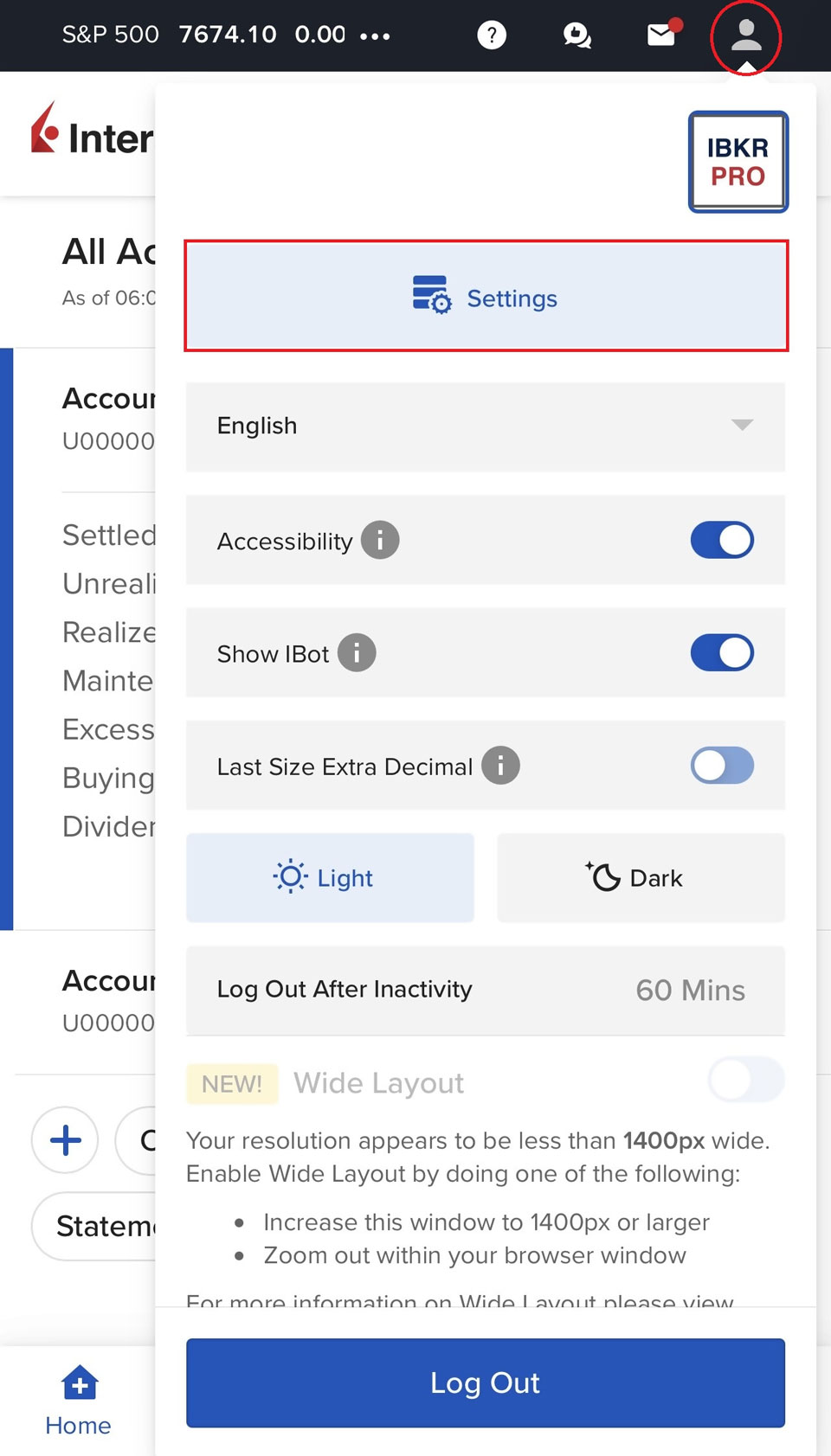
Click the User icon (Head and Shoulders) in the top right corner and go to Settings > Security > Secure Login System (SLS).
-
In the registration box on the right, click on the Passkey tab. (Alternatively, if prompted with a task during login, just click "Complete").
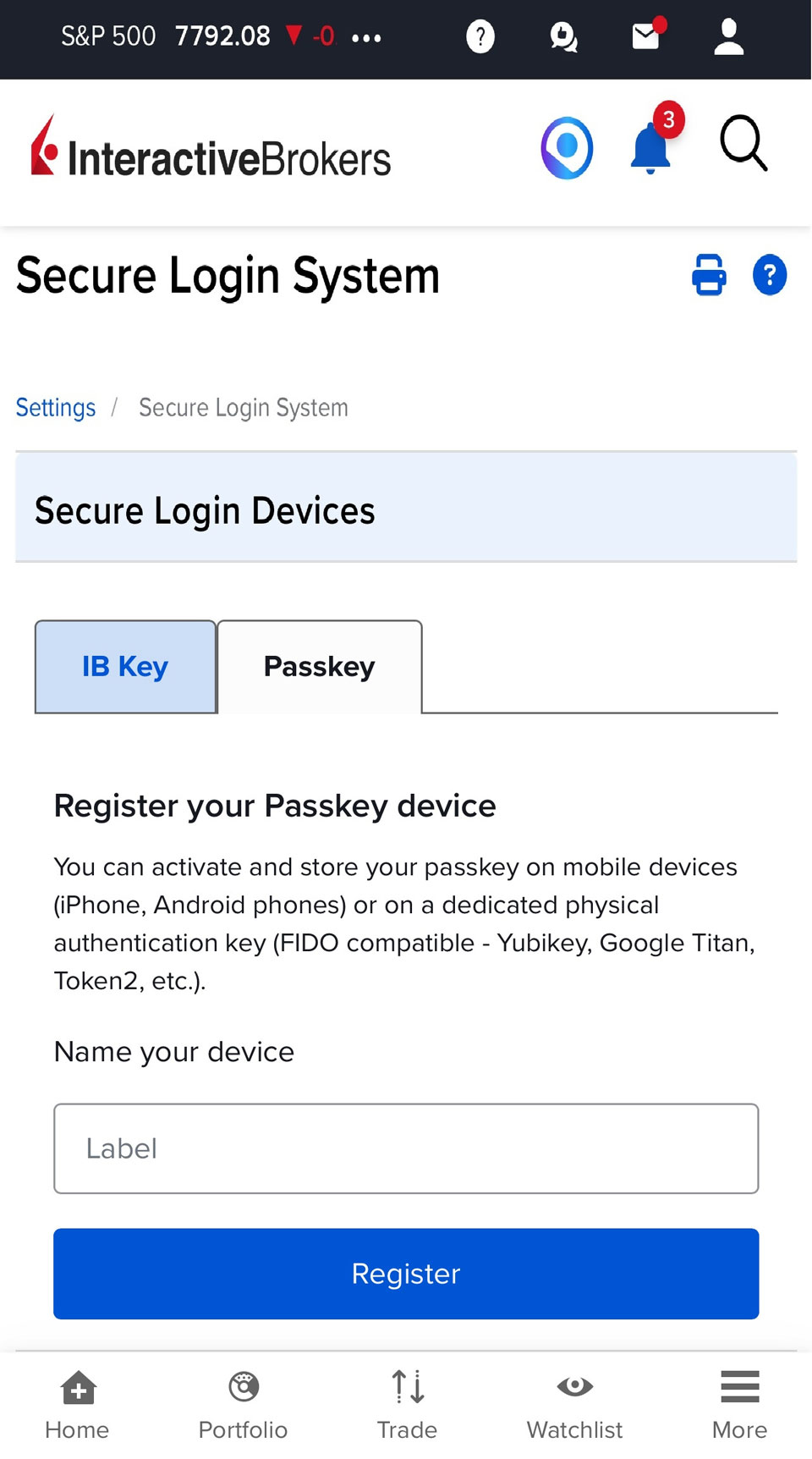
- Give your passkey a memorable name (e.g., "My mobile") and click Register.
Best for storing the passkey on your phone while viewing the portal on a separate computer.
- Preparation: Ensure Bluetooth is turned ON for both your computer and your phone.
-
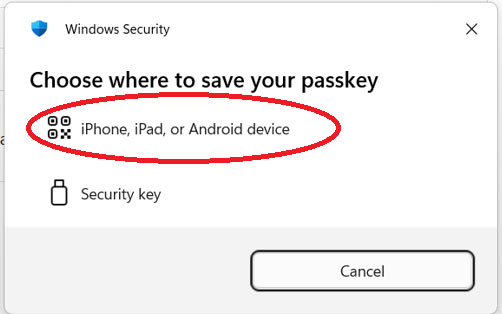
Action: After clicking Register when prompted select "iPhone, iPad, or Android device" on your computer screen.
-
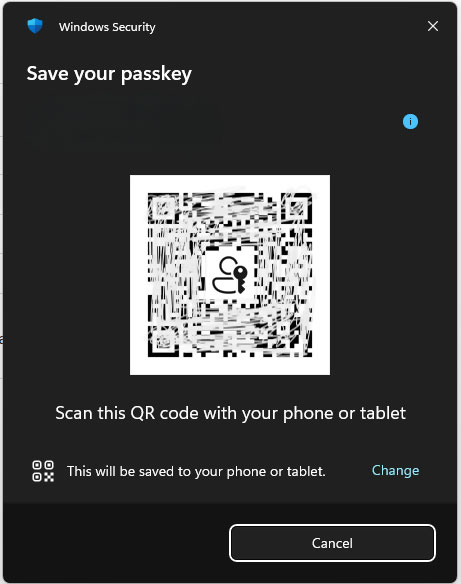
Scan: Open your phone's camera and scan the QR code displayed on your computer.
-
Confirm: Follow the pop-up prompt on your phone and verify using Face ID, Touch ID, or your device PIN.
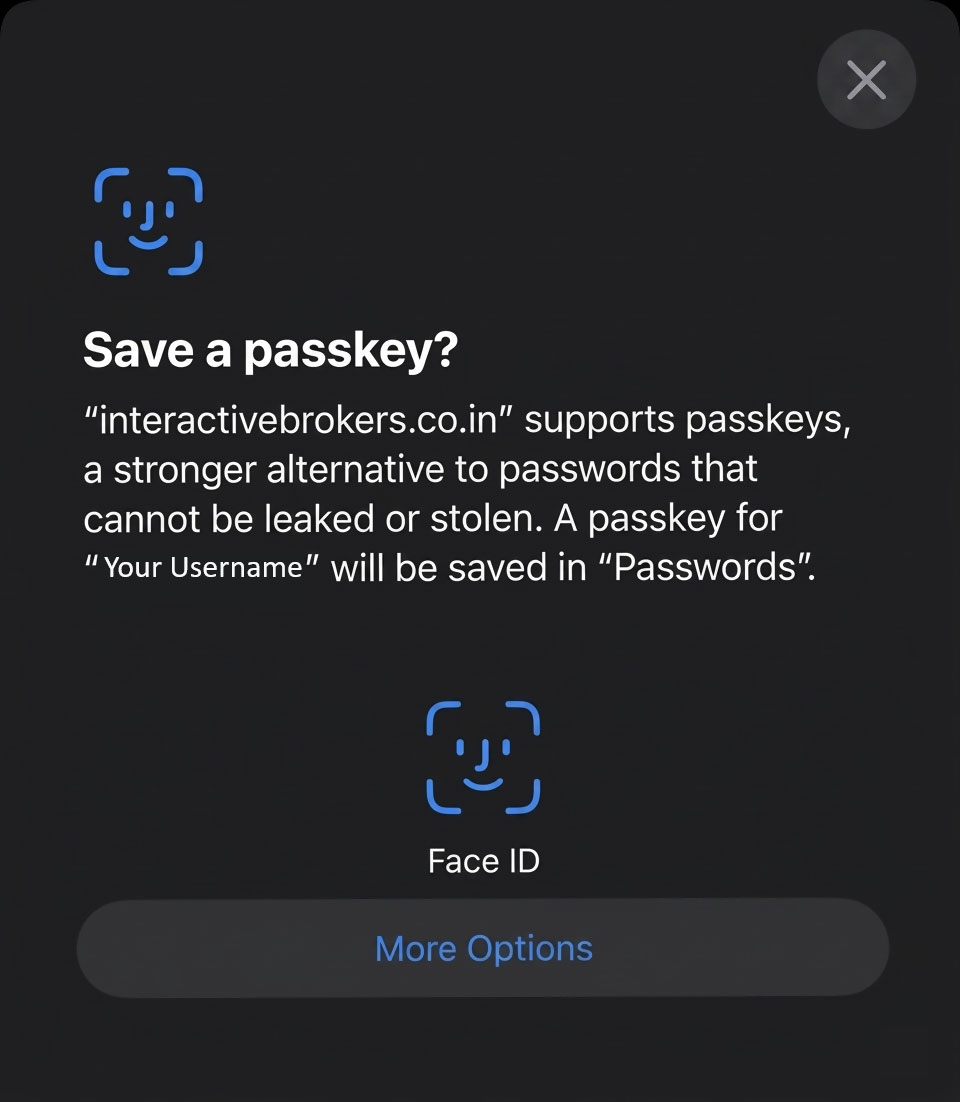
Best if you are activating the passkey directly on the phone or Windows PC you are currently using.
-
Mobile Phone: If logging in via a mobile browser, simply tap Register and choose Add Passkey or Continue. Verify with Face ID/Touch ID/PIN.
-
Windows PC: Select "This Windows device".
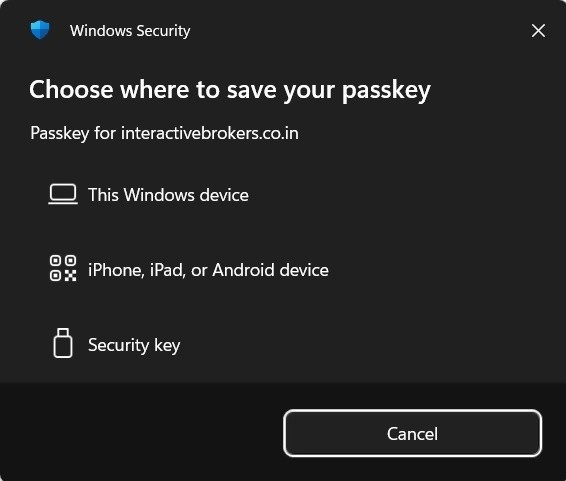
-
On the prompt for Save your passkey click on Continue
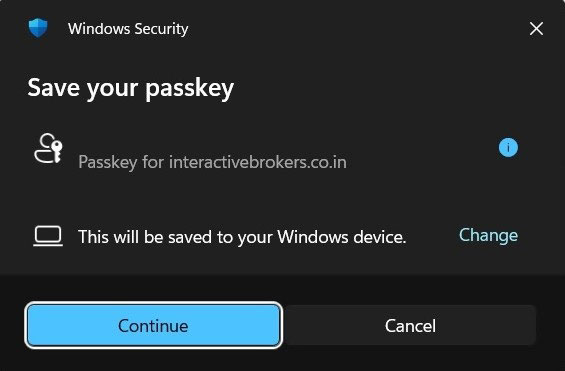
-
Follow the Windows Hello prompts to authenticate using facial recognition, fingerprint, or your computer PIN.
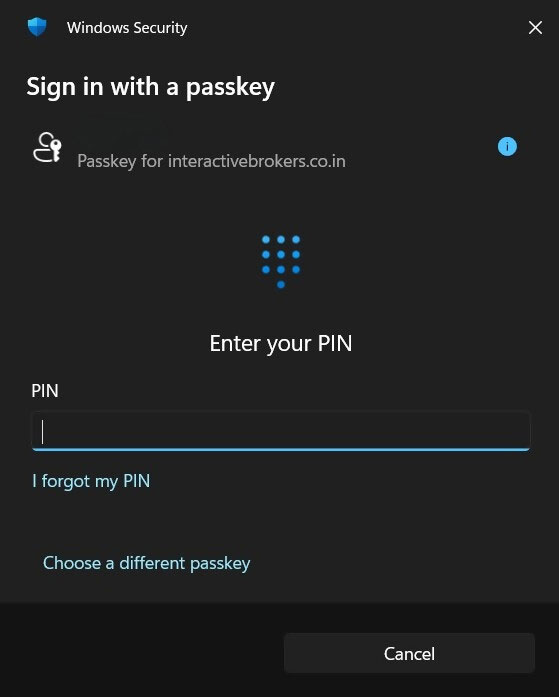
Note: Windows Hello passkeys are stored locally on that specific computer. We highly recommend activating a second passkey on your phone so you can log in from other devices.
Best if you use a dedicated FIDO2 hardware key (e.g., YubiKey, Google Titan).
-
Action: Select "Security Key" on your screen.
- Connect: Insert your key into your device's USB port (or tap it against the device if it is NFC-enabled).
-
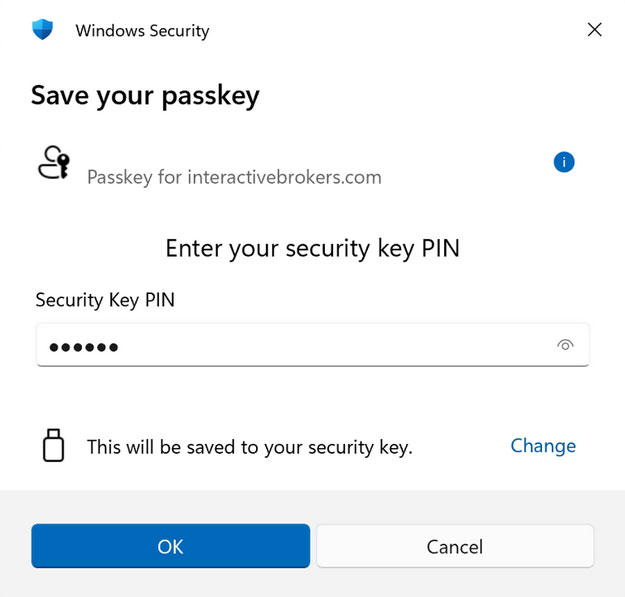
Confirm: Enter your security key PIN if prompted, then touch the metal button or sensor on the key itself.
- Enable Biometrics: Always use Face ID, Touch ID, or fingerprint scanning on your devices instead of just a simple PIN. Keep your device lock screen enabled.
- Sync Across Devices: Utilize cloud-synced password managers (like Apple iCloud Keychain, Google Password Manager, 1Password, etc) to seamlessly sync your passkey across all your personal devices.
- FAQs
For Detailed Instructions: